The password change process is as follows.
- After logging in to OneID, go to the [Account Information] menu and click the [Change Password] button.
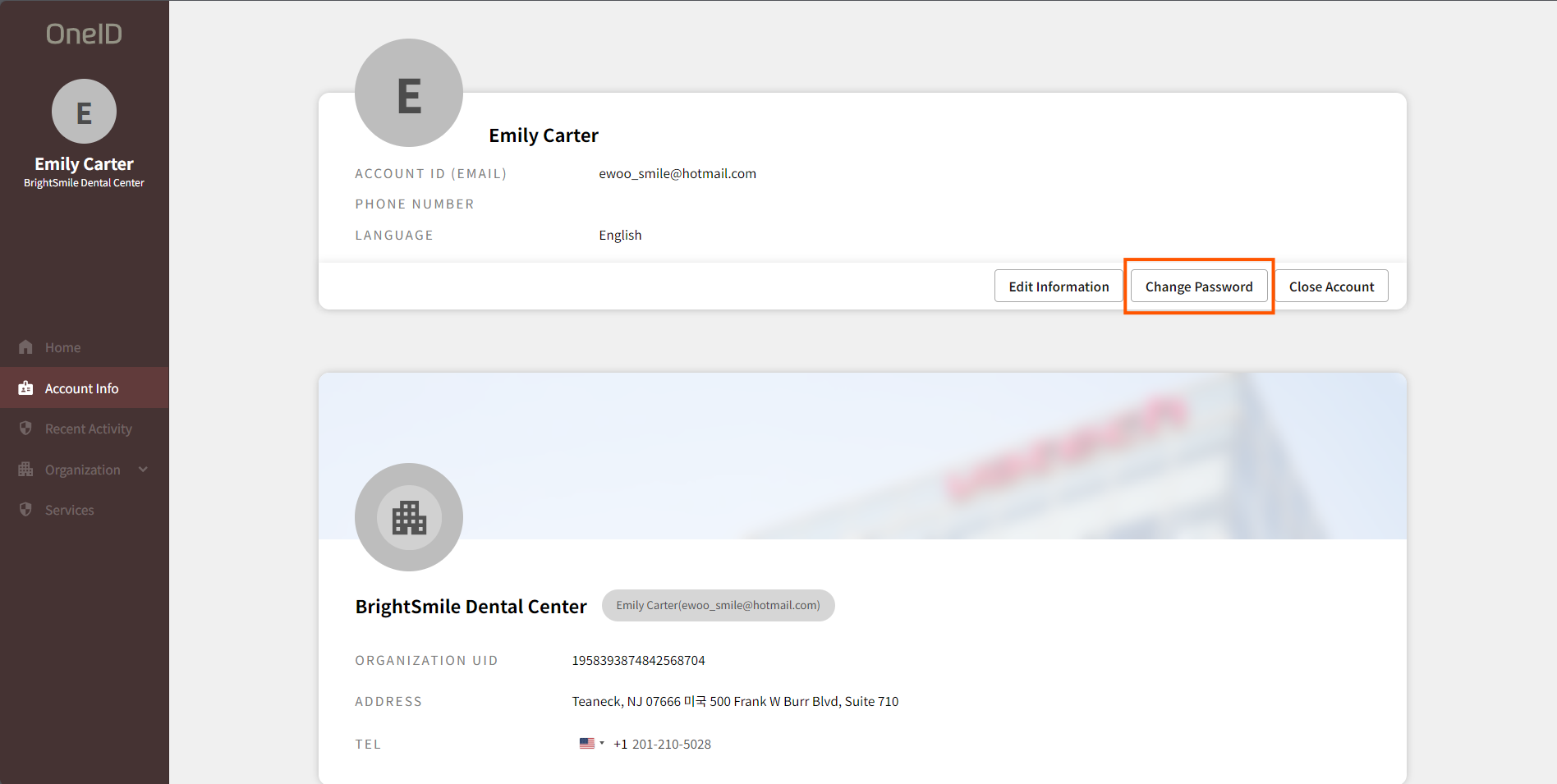
- To verify your account, Please enter your current password and click the [Confirm] button.
- Enter your New Password and Confirm New Password, then click the [Confirm] button.
- If the message “Your password has been successfully changed” appears, your password has been updated correctly.

Was this article helpful?
That’s Great!
Thank you for your feedback
Sorry! We couldn't be helpful
Thank you for your feedback
Feedback sent
We appreciate your effort and will try to fix the article